


Adobe Express: AI Photo, Video
4.610.95K Reviews
App Specs
- Version
- 30.9.0
- Updated On
- License
- Free
- Downloads
- 100,000,000+
- Developer
- Adobe
- Categories
- Art & Design
- Platform
- Android, iOS
Screenshots
 Analysis by AppCompare
I find the most useful way to think about Adobe Express is as a quick mobile workspace for turning a rough idea into a finished visual, rather than as a full replacement for desktop design software. That difference matters when you are deciding whether to install it: it can make a simple poster, social post, or short video feel much less daunting, but it still asks you to make creative choices. Its AI assistance can speed up parts of the process; it cannot decide what you want to say or guarantee that the result will feel personal.
When a connection becomes part of the workflow
Because the app brings together templates, creative tools, and AI-assisted actions, connectivity can shape how fluidly a session goes. I would plan on having a reliable connection when I’m browsing for creative material or trying an AI-powered action, rather than treating the app as a guaranteed offline editor. That is especially relevant if an idea comes to me while I’m away from home: I can start thinking through the layout, but I would avoid leaving an important final step until the moment I need to publish.
A practical habit is to separate choosing from finishing. I might decide on the message and rough composition while waiting for a connection, then do the more resource-dependent work when the network is steady. For a quick announcement, for example, I can prepare the wording first, choose a suitable format, and leave room to adjust the imagery and export once everything loads as expected. This keeps a small design task from turning into repeated taps and guesswork.
Guides and Analysis on Adobe Express: AI Photo, Video
Designed for short sessions on a phone
The mobile format is a real advantage when the work itself is modest: adding a title to a photo, making a simple invitation, or assembling a brief clip from material already on the device. I can picture using it between errands to make a clean event graphic, then checking the text at full size before sharing. That last check is worth doing on a phone because text that looks balanced while editing can feel cramped once the finished image is viewed in a feed.
For a more involved project, I would break the job into stages instead of trying to do everything in one sitting. Draft the copy, settle on a visual direction, and then make a final pass for spacing, contrast, and cropping. Short sessions make it easier to notice mistakes, and they also give me a natural point to pause if a connection drops or I need to switch tasks. If precise alignment, detailed retouching, or layered control is the main goal, I would rather use a desktop-focused tool than force a phone interface to do that work.
Recovering gracefully when a task stalls
A slow or interrupted connection is frustrating in any creative app because it breaks concentration. I try to avoid repeatedly tapping a button when an action appears to be waiting; that can make it harder to tell whether the first request is still in progress. Instead, I pause, check that the connection is stable, and resume deliberately. Before closing a project or moving to another app, I also make sure the visible work has been saved or exported as intended, rather than assuming every change has already reached its destination.
This careful approach is useful when a deadline is close. I would keep a copy of the original photo or video and avoid making the only version of an important asset depend on one editing session. If an export does not appear where I expect, I would check the app’s available save and share choices before starting the edit again. These are ordinary precautions, not a reason to avoid the app, but they reduce the chance that a brief network hiccup becomes a lost evening of work.
Worth Reading Before You Choose

Flipboard Shows What News Apps Must Do Beyond the Feed

Switching to Android Auto Means Rethinking Your Driving Routine

Google Calendar Makes a Crowded Week Easier to Manage

Ludo King Makes the Most of the Minutes Between Plans

Baby Panda World Brings Quick Play to Modern Phones, but Its Game Library Feels Busy

ESPN’s Live Game View Makes Following Close Games Easier
Keeping data use in perspective
Creative work can involve moving images and video, so I would be selective about when I explore options and when I commit to a final output, especially on a limited mobile connection. I can prepare the content and make basic decisions first, then use a more dependable network for browsing and finishing the parts that need it. That approach also helps me avoid loading several alternatives just because I am still unsure what the design should be.
Video is the point where I would be most deliberate: a short, focused edit is easier to manage than repeatedly rebuilding a clip while experimenting. I would settle on the message, pick the material, and review the result before sharing. For photo-led work, I can often keep the process simpler by choosing one strong image and making only the adjustments that support the subject. In both cases, a clear plan saves time and data without making the creative result feel constrained.
Unleashing Creativity with Ease
First things first, let's talk about the user interface. It's as intuitive as it gets. You don’t need to be a seasoned designer to navigate through the myriad of options. The app is designed to be user-friendly, making it accessible to everyone, from beginners to pros. Once you dive in, the sheer amount of templates and tools available is quite impressive. Whether you want to tweak a photo or create a video montage, Adobe Express has got you covered.
Features that Stand Out
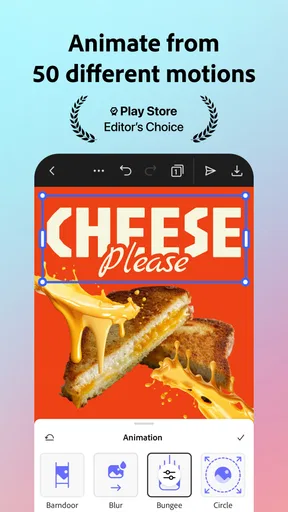
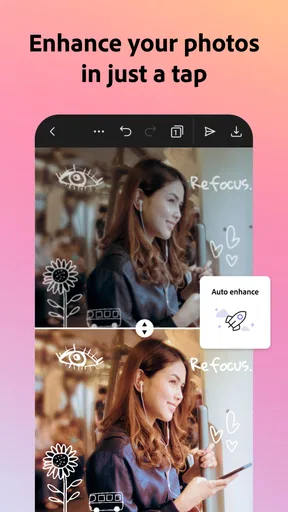
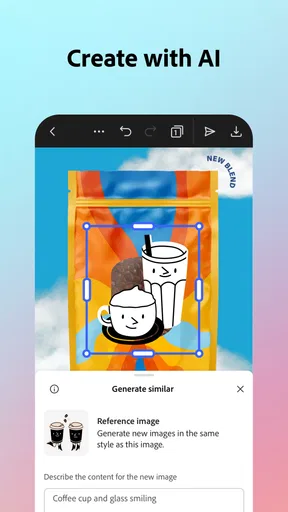
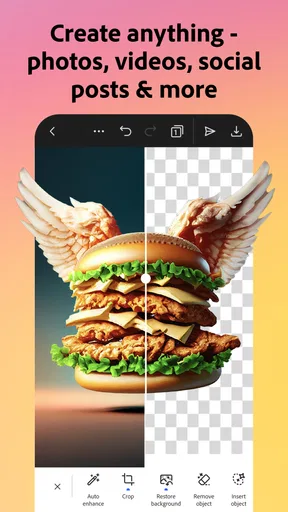
One of the standout features is the AI-powered tools. They’re like having a personal assistant that anticipates what you need. The AI automatically suggests edits that enhance your images and videos, making the process swift and effortless. The quality of the filters and effects is top-notch. You can add text, adjust colors, and even apply overlays with just a few taps.
Another cool feature is the seamless integration with other Adobe products. If you're already an Adobe user, this app will fit perfectly into your toolkit. It's like having a mini version of Photoshop and Premiere Pro on your phone, which is pretty awesome if you ask me.
Performance and Usability
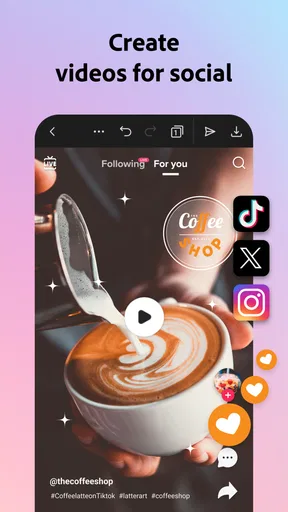
Performance-wise, the app runs smoothly. I didn't encounter any lag or crashes, which is a big plus. It handles high-resolution files well, so you don’t have to worry about losing quality during edits. The export process is straightforward, and you can easily share your creations on social media or save them to your device.
However, I did notice that some of the more advanced features are locked behind a subscription. While the free version is quite capable, investing in the premium version unlocks a treasure trove of additional tools and assets, which might be worth it if you're serious about your creative projects.
Who will get the most from it
I would recommend this art-and-design app to someone who needs finished-looking visuals quickly, especially if their projects are occasional and varied. A small business owner could make a simple promotion, a student could put together a presentation graphic, and a friend organizing a gathering could create an invitation without learning a complicated editor. The common thread is a need for a polished starting point, not complete control over every pixel.
For example, if I remembered a community event on the way home and needed a shareable announcement that evening, I could start with a template, replace its wording, bring in a relevant photo, and check the layout on my phone. I would pay particular attention to whether the date and location remain readable after the design is viewed at a smaller size. Templates help me get past the blank-page problem, but I still need to remove decorative elements that do not serve the message.
Small workflow choices that improve the result
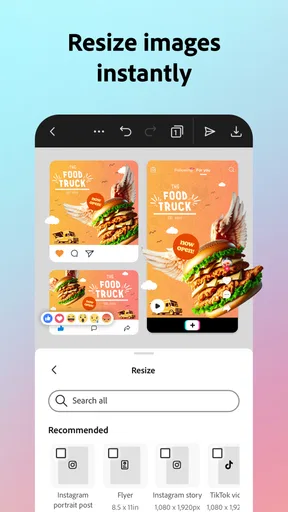
One useful trade-off is to decide on the final destination before editing. A graphic intended for a social feed, a message to a small group, and a printed notice may need different proportions or text sizes. Picking the purpose first helps me avoid finishing a layout and then discovering that the crop weakens its composition. I also keep the central message short; on a phone, a design with one clear heading and a supporting detail is usually easier to scan than a crowded block of copy.
When I use an AI suggestion, I treat it as a first draft rather than an instruction. I compare the proposed look with the actual subject and remove edits that make skin, product colors, or important details feel unlike the original. That is a particularly useful check for small business images, where an attractive effect can still misrepresent what is being shown. The time saved is real, but reviewing the result is part of the job.
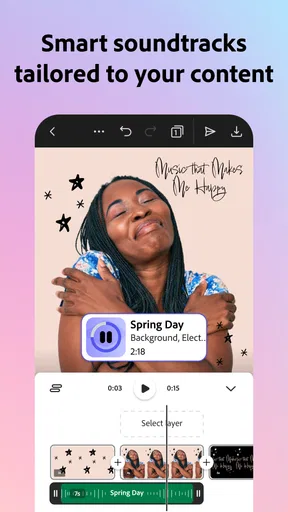
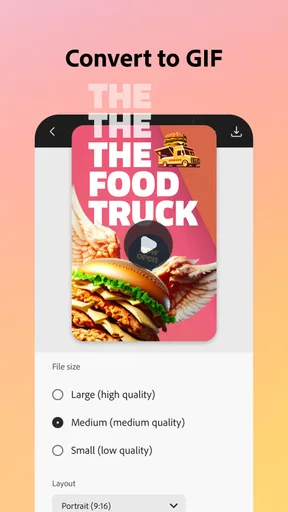
For video, I would decide the opening and closing moments before polishing transitions or decoration. A short clip can feel more deliberate when its first frame quickly explains what it is about and its ending does not cut off the point. This is a simple planning step, but it prevents me from spending time on visual flourishes while the basic sequence remains unclear. If the project needs careful audio work or precise multi-track editing, I would move to a dedicated video editor instead.
How it fits beside other creative apps
Compared with a basic photo editor, Adobe Express is more useful when I need to combine an image with typography and a designed layout, rather than only adjust brightness or crop. Compared with a full desktop design program, it is easier to approach on a phone, but that convenience comes with less room for fine-grained control. I see it as a practical middle ground: faster than building every graphic from scratch, yet more flexible than applying a single filter and calling the job done.
Its connection to Adobe’s wider creative ecosystem may make it a natural companion for people who already use Adobe tools. If I do not use those products, I can still judge the app on its own for quick mobile graphics, but I would not choose it solely on the assumption that it replaces a professional desktop workflow. People who mainly want detailed photo retouching may prefer a dedicated photo editor; people making complex motion pieces may be better served by a video tool built around timeline control.
Choosing a plan and setting expectations
The app is free to install, with a general-audience age rating, and Adobe is the developer. Its average rating is 4.6 from around 677,000 ratings, and it has passed 100 million installs. Those figures suggest broad adoption, but they do not tell me whether a particular paid tool is worth it for my own routine. I would begin with the free experience and only consider an in-app purchase after identifying a specific feature or asset I regularly need; listed purchases range from $9.99 to $99.99 per item.
That distinction matters because occasional users can often complete straightforward projects without paying, while someone producing content frequently may value a wider selection of tools. I would check the purchase details in the app before committing and avoid upgrading just because a feature looks impressive in a preview. The current version is 29.5.0, and the minimum operating system is 10, so it is sensible to check device compatibility before planning a workflow around it.
Where I would draw the line
I would skip Adobe Express if my main requirement were extensive manual control, a highly specialized retouching workflow, or dependable completion of complex edits while disconnected. It is also not my first choice when I need to make many near-identical assets with exacting production rules; a more structured desktop workflow can make consistency easier to manage. The app’s convenience is strongest when the brief is clear and the output is relatively contained.
On the other hand, a beginner who wants to make a respectable visual without starting from a blank canvas is likely to find it approachable. I would recommend it to a creator who values speed, templates, and a mix of photo and video work, while reminding them to review AI suggestions, check the final crop, and plan around connectivity for tasks that rely on online services. Those habits make the app feel much more dependable in everyday use.
Final Thoughts
In conclusion, Adobe Express: AI Photo, Video is a fantastic app that brings the power of Adobe’s renowned editing tools to your mobile device. Whether you're a casual user wanting to spice up your social media posts or a creator looking to make high-quality content on the go, this app is definitely worth checking out. With its combination of usability and powerful features, it’s a game-changer in the mobile editing space. So, go ahead and give it a try—you might just find it to be your new favorite creative companion!
Pros
- Intuitive interface for quick edits.
- Wide range of templates available.
- AI features enhance creativity.
- Seamless integration with Adobe Cloud.
- Regular updates with new tools.
Cons
- Requires internet for full functionality.
- Some features locked behind paywall.
- Can be resource-intensive on devices.
- Limited free storage space.
- Occasional bugs in AI processing.
FAQs for Adobe Express: AI Photo, Video
What is Adobe Express: AI Photo, Video used for?
Adobe Express: AI Photo, Video is a versatile app designed for quick and easy photo and video editing. It offers a range of tools powered by AI to enhance images, create engaging videos, and design graphics. Whether you're a beginner or a seasoned editor, the app provides intuitive features to streamline your creative process.
Is Adobe Express suitable for professional editing?
While Adobe Express is primarily designed for quick edits and is user-friendly for beginners, it does offer a robust set of tools that can be useful for professional projects. However, for more complex editing tasks, Adobe's other products like Photoshop or Premiere Pro might be more suitable.
Does Adobe Express require an internet connection?
Adobe Express does require an internet connection for certain features, such as downloading templates or accessing cloud services. However, basic editing functions can still be used offline. It's recommended to stay connected to fully utilize all of the app’s capabilities and updates.
What are the pricing options for Adobe Express?
Adobe Express offers a free version with basic features, but for full access to premium tools and content, a subscription is required. Pricing varies depending on the plan chosen, and Adobe frequently updates its pricing and package options, so it's best to check their official website for the latest information.
Can I use Adobe Express across different devices?
Yes, Adobe Express offers cross-device compatibility, allowing you to start a project on your phone and finish it on your tablet or desktop. Your projects are synced through Adobe Cloud, making it easy to access and edit your work from anywhere, provided you have an active internet connection.


